It’s a scenario all too familiar: you fire up your computer, eager to dive into work or unwind with a game, only to be met with a frustrating hiccup. Perhaps your printer refuses to print, your webcam shows a black screen, or a peripheral you rely on simply isn't recognized. More often than not, these frustrating roadblocks stem from Software & Device Configuration Errors, often rooted in misbehaving drivers or a tangled Windows Registry.
These aren't just minor annoyances; they're warning signs that your system’s harmony is off-kilter. Left unaddressed, they can lead to performance issues, system instability, and even data loss. But don't despair – arming yourself with the right knowledge transforms you from a bewildered user into a confident troubleshooter.
At a Glance: Your Quick Fix Cheat Sheet
- What They Are: Glitches where your hardware and software can't communicate effectively, typically due to driver issues, Registry corruption, or resource conflicts.
- How to Spot Them: Your first stop is Windows Device Manager, which flags problematic devices with specific error codes.
- Key Culprits: Outdated, corrupted, or missing drivers; conflicting Registry entries; hardware not properly connected or faulty.
- Your Main Weapons: Updating or reinstalling drivers, tweaking Registry settings (carefully!), performing system restarts, and utilizing built-in troubleshooters.
- When to Call for Backup: If DIY fixes fail, contacting the hardware manufacturer or considering a system restore might be necessary.
When Your Tech Speaks in Riddles: Understanding Configuration Errors
Imagine your computer as a bustling city. The hardware components (like your graphics card, mouse, or USB drive) are the buildings, and the software applications are the people going about their daily lives. For everyone to coexist and function, there needs to be a clear set of rules and communication channels.
That’s where drivers and the Windows Registry come in.
- Drivers: Think of drivers as the language interpreters. Each piece of hardware needs a specific driver—a small piece of software—to translate its signals into something the operating system (Windows) can understand, and vice-versa. If this interpreter is missing, speaking the wrong language (outdated), or has a corrupted dictionary (damaged), communication breaks down. That's a driver configuration error.
- The Windows Registry: This is the city's master blueprint and rulebook, a massive database storing crucial settings, options, and configuration information for virtually everything on your PC. When device configurations within the Registry become corrupted, incomplete, or conflicting, the system doesn't know how to properly manage or even start a device. This is a Registry configuration error.
Beyond these two primary culprits, configuration errors can also arise from resource conflicts (when two devices try to use the same system resource like an IRQ or I/O port) or simply physical disconnection.
The Detective's Toolkit: Finding Error Codes in Device Manager
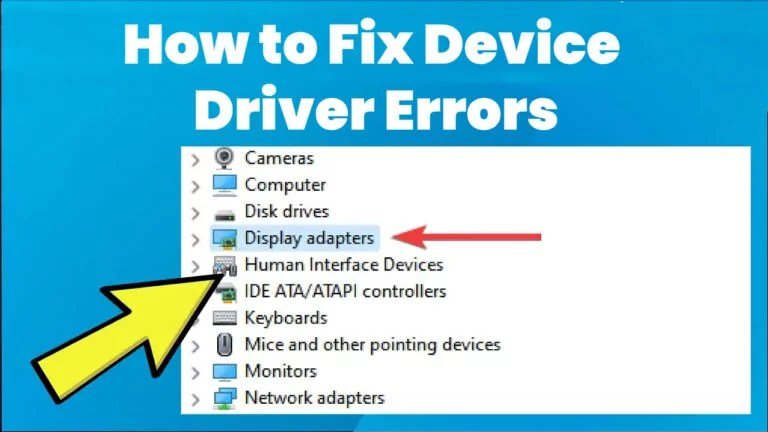
Windows is surprisingly good at telling you when something’s wrong, if you know where to look. Your primary diagnostic hub is the Device Manager. It's designed to give you a bird's-eye view of all your installed hardware and highlight any components that aren't playing nice.
Here's how to access it and pinpoint issues:
- Open Device Manager: The quickest way is to press
Win + Xon your keyboard and select "Device Manager" from the power user menu. Alternatively, type "Device Manager" into the Windows search bar and hit Enter. - Locate the Problem: In Device Manager, look for devices marked with a yellow exclamation point (!) or a red "X." These visual cues immediately tell you something is amiss. Devices are grouped by type (e.g., "Display adapters," "Sound, video and game controllers").
- Check Device Status: Double-click the problematic device (or right-click and select "Properties"). In the "General" tab of the Properties window, you'll find the "Device status" area. This is where Windows displays a concise description of the problem and, crucially, an error code. This code is your key to understanding the specific issue and finding the right solution.
Promptly addressing these codes ensures smooth operation and prevents minor glitches from escalating into major headaches.
Decoding the Messages: Common Device Manager Error Codes and Their Fixes
While Device Manager lists many error codes, some appear more frequently than others. Let’s dive into the most common ones you'll encounter and, more importantly, how to fix them.
Code 1: "This device is not configured correctly."
- The Root Cause: This usually means Windows doesn't have the right drivers installed for the device, or the existing ones are improperly set up. It’s like having a new appliance but no instructions on how to plug it in.
- Your Action Plan: The primary solution is to update the driver.
- Press
Win + Xand open Device Manager. - Navigate to the affected device (look for the yellow exclamation mark).
- Right-click the device and select "Update Driver."
- Choose "Search automatically for updated driver software." Windows will try to find and install a driver from its own repository or online.
- If Windows can't find one, you'll need to manually download the latest driver from the device manufacturer’s official website and then use the "Browse my computer for driver software" option, pointing it to the downloaded driver file.
Code 10: "This device cannot start."
- The Root Cause: A very common and frustrating error, Code 10 indicates that the device's driver is likely outdated, corrupted, or mismatched, preventing it from initializing. Sometimes, it's due to a missing internal "FailReasonString" value, but the fix remains driver-focused.
- Your Action Plan:
- Restart Your Computer: This often overlooked step can clear temporary glitches, refresh hardware connections, and resolve resource conflicts. It's the "turn it off and on again" for a reason.
- Update or Reinstall Your Driver:
- Open Device Manager (
Win + X). - Locate the device, right-click, and select "Uninstall device." Crucially, if prompted, do not check the box to "Delete the driver software for this device" unless you plan a completely fresh install with a downloaded driver.
- Restart your PC. Windows should automatically detect the device and reinstall a generic or previous version of the driver.
- To confirm, go to Device Manager > View > "Devices by driver." If the device still isn't working or recognized, manually download the latest driver from the vendor’s official website and install it.
- Revert to a Previous Driver Version (Rollback): If the problem started after a recent driver update, rolling back can restore functionality. In the device's Properties window, go to the "Driver" tab and click "Roll Back Driver" (if available).
Code 19: "Windows cannot start this hardware device because its configuration information (in the registry) is incomplete or damaged."
- The Root Cause: This one points directly to the Windows Registry. Multiple conflicting or corrupted entries for the device are preventing Windows from understanding how to initialize it.
- Your Action Plan:
- Edit the Registry (with extreme caution!): Before proceeding, always back up your Registry! Messing with the Registry can render your system unbootable.
- Press
Win + R, typeregedit, and hit Enter to open Registry Editor. - Navigate to:
HKEY_LOCAL_MACHINE\SYSTEM\CurrentControlSet\Control\Class\{4d36e967-e325-11ce-bfc1-08002be10318}(this GUID is for CD/DVD drives, but similar issues can occur for other device classes; you might need to find the correct GUID for your specific device type). - In the right pane, look for
UpperFiltersandLowerFiltersvalues. These are often the culprits when corrupted. - Right-click and delete both
UpperFiltersandLowerFiltersif they exist. - Click "Apply," then "OK," and restart your PC.
- Use the Hardware and Devices Troubleshooter: This built-in tool can often detect and fix common hardware-related Registry issues.
- Press
Win + R, typecmd, and hit Enter. - Type
msdt.exe -id DeviceDiagnosticand press Enter. - Follow the on-screen instructions.
- Reinstall or Roll Back the Driver: If Registry editing isn't for you, or doesn't work, a clean driver reinstall (as described for Code 10) can sometimes rebuild correct Registry entries.
Code 31: "This device is not working properly because Windows cannot load the drivers required for this device."
- The Root Cause: Similar to Code 1 and Code 10, this error means Windows simply cannot load the necessary drivers for the device to function. It could be missing, corrupted, or incompatible.
- Your Action Plan: The most direct solution is to update or reinstall the device drivers.
- Press
Win + Xand open Device Manager. - Locate the affected device.
- Right-click and select "Update Driver."
- Choose "Search automatically for updated driver software." If that fails, manually download the latest driver from the manufacturer's website and install it.
- As a last resort, uninstall the device (without deleting driver software) and restart your computer to force a reinstallation.
Code 43: "Windows has stopped this device because it has reported problems."
- The Root Cause: This is a general "something's wrong" message. The device driver itself has reported an unspecified problem to Windows, prompting the OS to shut down the device to prevent system instability. This can indicate anything from a faulty driver to a hardware malfunction.
- Your Action Plan:
- Manually Reinstall Your Device Driver: This is the most common fix.
- Press
Win + Xand open Device Manager. - Navigate to the affected device.
- Right-click and select "Uninstall device."
- From the Device Manager menu bar, select "Action."
- Select "Scan for hardware changes." Windows will attempt to re-detect and reinstall the device and its driver.
- If Windows can't find drivers, you'll need to manually provide the file path or download the latest version from the vendor’s official website.
- Contact the Hardware Manufacturer: If driver reinstallation doesn't resolve Code 43, it strongly suggests a physical hardware issue. Reaching out to the manufacturer’s support for diagnosis or replacement is the next logical step.
Code 45: "Currently, this hardware device is not connected to the computer."
- The Root Cause: This is perhaps the most straightforward error. Windows has simply lost connection with the device. It could be physically unplugged, loosely connected, or the port itself is damaged.
- Your Action Plan:
- Reconnect the Device: Simple as it sounds. Unplug the device and plug it back in firmly. Try a different USB port or cable if available.
- Inspect for Physical Damage: Check the device’s cable, connectors, and the port on your computer for any visible signs of damage, such as bent pins, warped USB ports, or torn wires. If damage is found, the hardware might need repair or replacement.
Beyond the Usual Suspects: A Comprehensive Guide to All Device Manager Error Codes
Sometimes the issue isn't one of the common few. For those deeper dives, here’s a comprehensive reference for almost every Device Manager error code and its typical resolution. Keep this handy; it's a critical tool when you accidentally need help with tricky hardware.
| Code | Error Message | Recommended Solution(s) |
|---|---|---|
| 1 | "This device is not configured correctly." | Update the driver. |
| 3 | "The driver for this device might be corrupted, or your system may be running low on memory or other resources." | Close resource-hungry apps, reinstall the driver. Check system resources and virtual memory; consider increasing RAM. |
| 9 | "Windows cannot identify this hardware because it does not have a valid hardware identification number." | Contact the device manufacturer for assistance or replacement. |
| 10 | "This device cannot start." | Update/reinstall device drivers, restart the computer, or run Hardware/USB Troubleshooter. |
| 12 | "This device cannot find enough free resources that it can use." | Update the driver, manage hardware resource allocation in BIOS, manually assign unique I/O ports, IRQs, and DMA channels, or contact the device manufacturer. |
| 14 | "This device cannot work properly until you restart your computer." | Restart your computer. |
| 16 | "Windows cannot identify all the resources this device uses." | For Plug and Play devices, assign resources with a question mark on the Resources tab in Device Manager. For non-Plug and Play, contact the manufacturer. |
| 18 | "Reinstall the drivers for this device." | Reinstall the driver via the Hardware Update wizard or manually. |
| 19 | "Windows cannot start this hardware device because its configuration information (in the registry) is incomplete or damaged." | Modify Registry values (carefully, with backup!), reinstall the driver manually, or roll back to a previous version. |
| 21 | "Windows is removing this device." | Wait for Windows to complete the removal, restart your computer, or perform a clean boot. |
| 22 | "This device is disabled." | Enable the device in Device Manager by right-clicking and selecting "Enable Device." |
| 24 | "This device is not present, and is not working properly, or does not have all its drivers installed." | Remove the device and reconnect it. |
| 28 | "The drivers for this device are not installed." | Reinstall the driver manually, downloading from OEM if needed. |
| 29 | "This device is disabled because the firmware of the device did not give it the required resources." | Enable the device in your computer’s BIOS or contact the manufacturer. |
| 31 | "This device is not working properly because Windows cannot load the drivers required for this device." | Reinstall the driver. |
| 32 | "A driver (service) for this device has been disabled." | Reinstall the driver manually. |
| 33 | "Windows cannot determine which resources are required for this device." | Update your BIOS, ensure hardware components are configured correctly, or contact the manufacturer. |
| 34 | "Windows cannot determine the settings for this device. Consult the documentation that came with this device and use the Resource tab to set the configuration." | Consult the device's manual for configuration, then manually set resources on the Resources tab in Device Manager if necessary. |
| 35 | "Your computer’s system firmware does not include enough information to properly configure and use this device." | Contact the computer’s manufacturer to obtain a firmware or BIOS update. |
| 36 | "This device is requesting a PCI interrupt but is configured for an ISA interrupt (or vice versa)." | Change Interrupt Request (IRQ) reservation settings in BIOS, consulting hardware documentation or manufacturer. |
| 37 | "Windows cannot initialize the device driver for this hardware because a previous instance of the device driver is still in memory." | Reinstall the driver manually. |
| 38 | "Windows cannot load the device driver." | Restart your computer. |
| 39 | "Windows cannot load the device driver for this hardware. The driver may be corrupted or missing." | Reinstall the driver for that device. |
| 40 | "Windows cannot access this hardware because its service key information in the registry is missing or recorded incorrectly." | Reinstall the device driver manually. |
| 41 | "Windows successfully loaded the device driver for this hardware but cannot find the hardware device." | Reinstall the driver for the device. |
| 42 | "Windows cannot load the device driver for this hardware because there is a duplicate device already running in the system." | Restart your computer. |
| 43 | "Windows has stopped this device because it has reported problems." | Reinstall the driver manually or contact the manufacturer. |
| 44 | "An application or service has shut down this hardware device." | Restart your computer. |
| 45 | "Currently, this hardware device is not connected to the computer." | Connect the device to your computer/check for damaged ports. |
| 46 | "Windows cannot gain access to this hardware device because the operating system is in the process of shutting down." | No resolution needed; the device will work correctly upon next startup. |
| 47 | "Windows cannot use this hardware device because it has been prepared for safe removal, but it has not been removed from the computer." | Unplug and re-plug the device, or restart your computer. |
| 48 | "The software for this device has been blocked from starting because it is known to have problems with Windows." | Contact the hardware vendor for a new, compatible driver. |
| 49 | "Windows cannot start new hardware devices because the system hive is too large (exceeds the Registry Size Limit)." | Set Device Manager to display non-present devices (set devmgr_show_nonpresent_devices=1 in CMD), then uninstall hidden/non-present devices and restart. |
| 50 | "Windows cannot apply all of the properties for this device." | Reinstall the driver manually or contact the device manufacturer for a new driver. |
| 51 | "This device is currently waiting on another device or set of devices to start." | Check for and resolve issues with failing components the device relies on; restart the computer. |
| 52 | "Windows cannot verify the digital signature for the drivers required for this device." | Download and install updated, digitally signed drivers from the vendor’s website or contact the manufacturer. |
| 53 | "This device has been reserved for use by the Windows kernel debugger for the duration of this boot session." | Disable Windows kernel debugging using bcdedit /debug off in an elevated Command Prompt, then restart. |
| 54 | "This device has failed and is undergoing a reset." | Restart your computer. |
When All Else Fails: Advanced Troubleshooting Tactics
Sometimes, the standard solutions don't quite cut it. When you're dealing with stubborn Software & Device Configuration Errors, it’s time to pull out some more powerful diagnostic tools.
Let Windows Troubleshoot for You
Windows has significantly improved its built-in troubleshooting capabilities over the years. These tools can often identify and automatically fix common problems without requiring deep technical knowledge.
- Press
Win + Ito open Settings. - Navigate to "Update & Security" > "Troubleshoot" (on Windows 10) or "System" > "Troubleshoot" > "Other troubleshooters" (on Windows 11).
- Look for and run relevant diagnostic tools like "Hardware and Devices," "Printer," "Bluetooth," or "Sound" troubleshooters. These are designed to detect and resolve issues specific to those components.
Dive Deeper with Event Viewer
For a more granular look at what's happening behind the scenes, the Event Viewer is an invaluable resource. It logs almost everything Windows does, including errors, warnings, and informational messages.
- Press
Win + Xand select "Event Viewer." - In the left pane, navigate to "Windows Logs" > "System."
- Look for error messages (marked with a red exclamation point) or warnings (yellow triangle) around the time your device started malfunctioning. Pay close attention to the "Source" and "Event ID" columns. Double-clicking an event will provide more details, often including hints about the underlying cause or specific files involved.
Rewind Time with System Restore
If a device started acting up after a recent software installation, driver update, or system change, Windows System Restore can be a lifesaver. This feature allows you to revert your computer’s system files, installed applications, Windows Registry, and system settings to an earlier point in time, called a "restore point," without affecting your personal files.
- Search for "Create a restore point" in the Windows search bar and open it.
- In the System Properties window, click the "System Restore..." button.
- Follow the wizard to choose a restore point (preferably one created before the issue began) and initiate the restoration process. Be aware that any programs installed after that restore point will be uninstalled.
Your Burning Questions Answered
We get it – these issues can be perplexing. Here are some common questions we hear, and straightforward answers to guide you.
How do I know if a driver is outdated?
Open Device Manager, navigate to the device, right-click, choose "Properties," and go to the "Driver" tab. Note the "Driver Version" and "Driver Date." Then, visit the device manufacturer’s official website, locate your specific device model, and compare its latest driver version and date to yours. If the manufacturer's version is newer, yours is outdated.
What if none of the solutions work?
First, ensure your Windows operating system is fully up to date via Settings > Windows Update. Sometimes, OS updates include critical patches for hardware compatibility. If the problem persists, the next step is to contact the device manufacturer’s technical support. They might have specific diagnostic tools, firmware updates, or advanced troubleshooting steps tailored to their product. As a last resort, performing a System Restore (as mentioned above) can undo recent changes, or a clean installation of Windows might be necessary for persistent, system-wide issues.
Can all drivers be reinstalled at once?
While tempting, reinstalling all drivers at once is generally not recommended. It's much safer to tackle drivers one at a time, focusing on the problematic device. This helps you isolate the issue and avoid introducing new conflicts. Bulk driver update tools exist, but they come with risks if they install incorrect or unstable versions. Stick to official manufacturer websites for critical drivers.
How do I find error codes in Device Manager?
Simply expand the component’s device category (e.g., "Display adapters"), double-click the problematic device (it usually has a yellow exclamation mark), and then find the error code and its description in the "Device status" field under the "General" tab.
Is it safe to delete Registry keys?
Only with extreme caution and after creating a full backup of your Registry (File > Export in Registry Editor). Deleting or modifying the wrong Registry key can render your Windows installation unstable or even unbootable. Stick to well-documented fixes from trusted sources, and if you're unsure, seek expert help.
Taking Control: Ensuring a Seamless Digital Experience
Monitoring and quickly addressing Software & Device Configuration Errors is a fundamental part of maintaining a healthy and efficient workstation. It’s not just about fixing problems when they arise; it’s about understanding the language your computer speaks when it encounters a roadblock.
By regularly checking Device Manager, keeping your drivers updated, and knowing how to navigate the basics of troubleshooting, you empower yourself to keep your system compatible, stable, and running smoothly. A little proactive maintenance goes a long way in guaranteeing a hassle-free workflow, allowing you to focus on what matters most, rather than battling with your tech.